> For the complete documentation index, see [llms.txt](https://docs.gooey.ai/llms.txt). Markdown versions of documentation pages are available by appending `.md` to page URLs; this page is available as [Markdown](https://docs.gooey.ai/ai-agent/how-to-deploy-an-ai-copilot/deploy-on-whatsapp.md).
# Deploy to WhatsApp
One-click integration for your AI Agent
## **How to deploy on WhatsApp**
**Prerequisites**
* Verified Facebook business account
* A new or spare phone number for the WhatsApp agent
#### Deploy
Click on the [Deploy tab](https://gooey.ai/copilot/integrations/) in the agent workflow

* Use the “WhatsApp” button
* You’ll be redirected to Facebook Login Page
> NOTE: Gooey connects to a Facebook profile, it will not connect to a Facebook Page. If you don't have access to the Facebook profile/account of your organization, we suggest making a special Facebook profile for this.
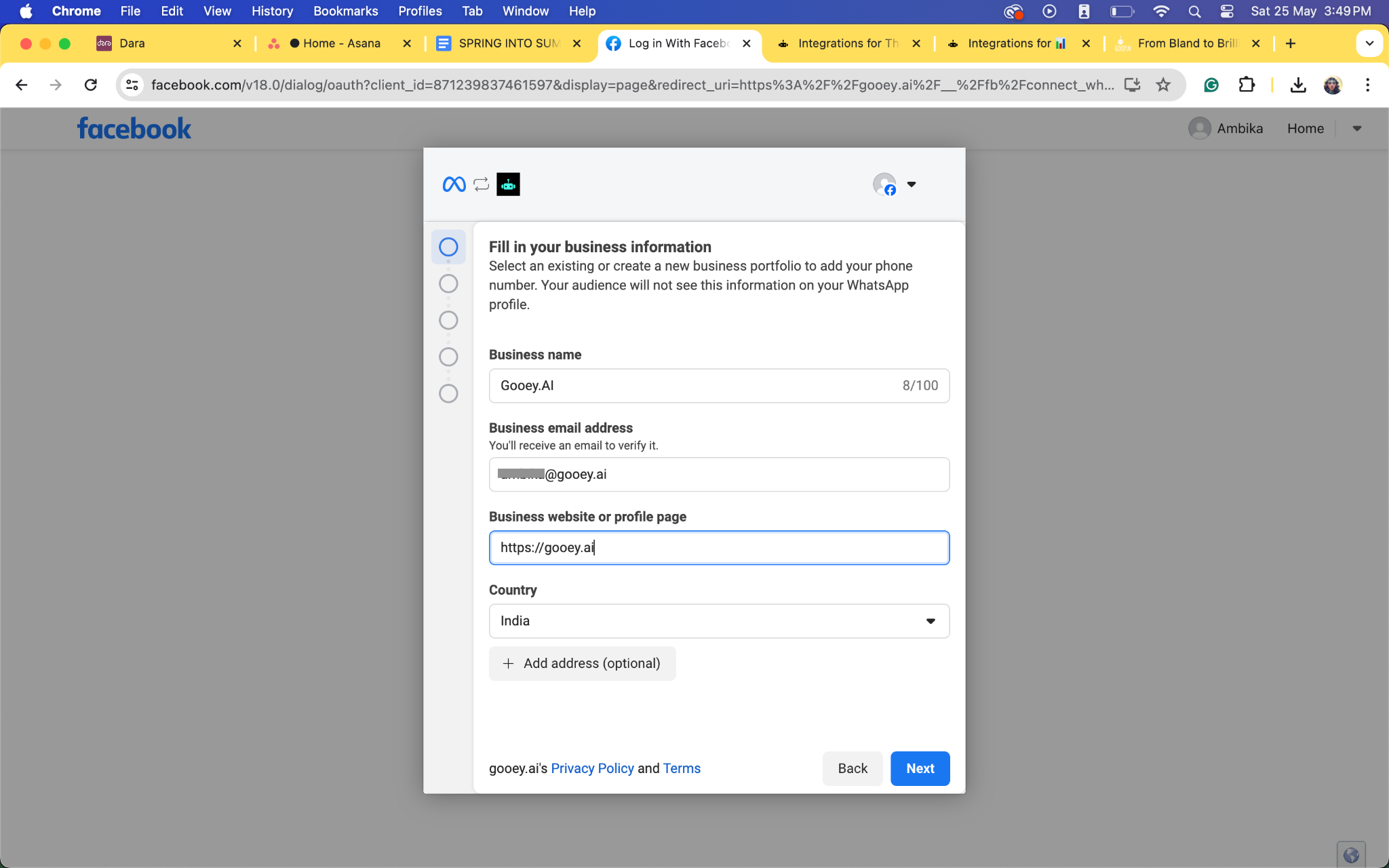
* Follow the instructions on the Facebook page
### Step 1 - Fill Business Information
### Step 2 - Choose your business account (or create a new one)
### Step 3 - Add a phone number for your Whatsapp agent
### Step 4 - Verify the phone number
### **YOUR AI AGENT IS NOW READY!**
**Test**
You can test your agent by heading to the registered number!
**Share**
To share the link with others, share the number like this: \
#### Your AGENT is ready for the world! 😀
### Frequently Asked Questions
**Q: I have got a new number for the WhatsApp deployment but it isn't working. What should I do?**
A: There could be a few reasons why this isn't working, please AVOID these steps:
* You have activated the sim card on a smartphone with WhatsApp messaging app
* You have registered the phone number directly on Facebook
* You have registered the phone number directly on Whatsapp Manager
Please avoid this, you will not be able to integrate Gooey AI Agent on that number until you deactivate all these things.
**Q: The deployment worked successfully, but it's not working now. Why is this?**
A: We have commonly found that after successful deployment users/organizations try to use the connected phone number on the WhatsApp client for messages sent by human experts. Once you have integrated the WhatsApp agent with your AI Agent, you can't have additional human-sent messages like other WhatsApp Business Accounts.
**Q: The deployment worked successfully, why did the agent stop working after the first day?**
A: If you don't connect a credit card to your Facebook Account for the agent, it will deactivate in 24 hours. There won't be any additional charge from Facebook but they require a credit card to activate the account. Once you add a card there will be a business verification process.
Get a WhatsApp number from Gooey by upgrading to a business plan at or book us for a sales call at if they have questions.