# How to set up Evaluations?

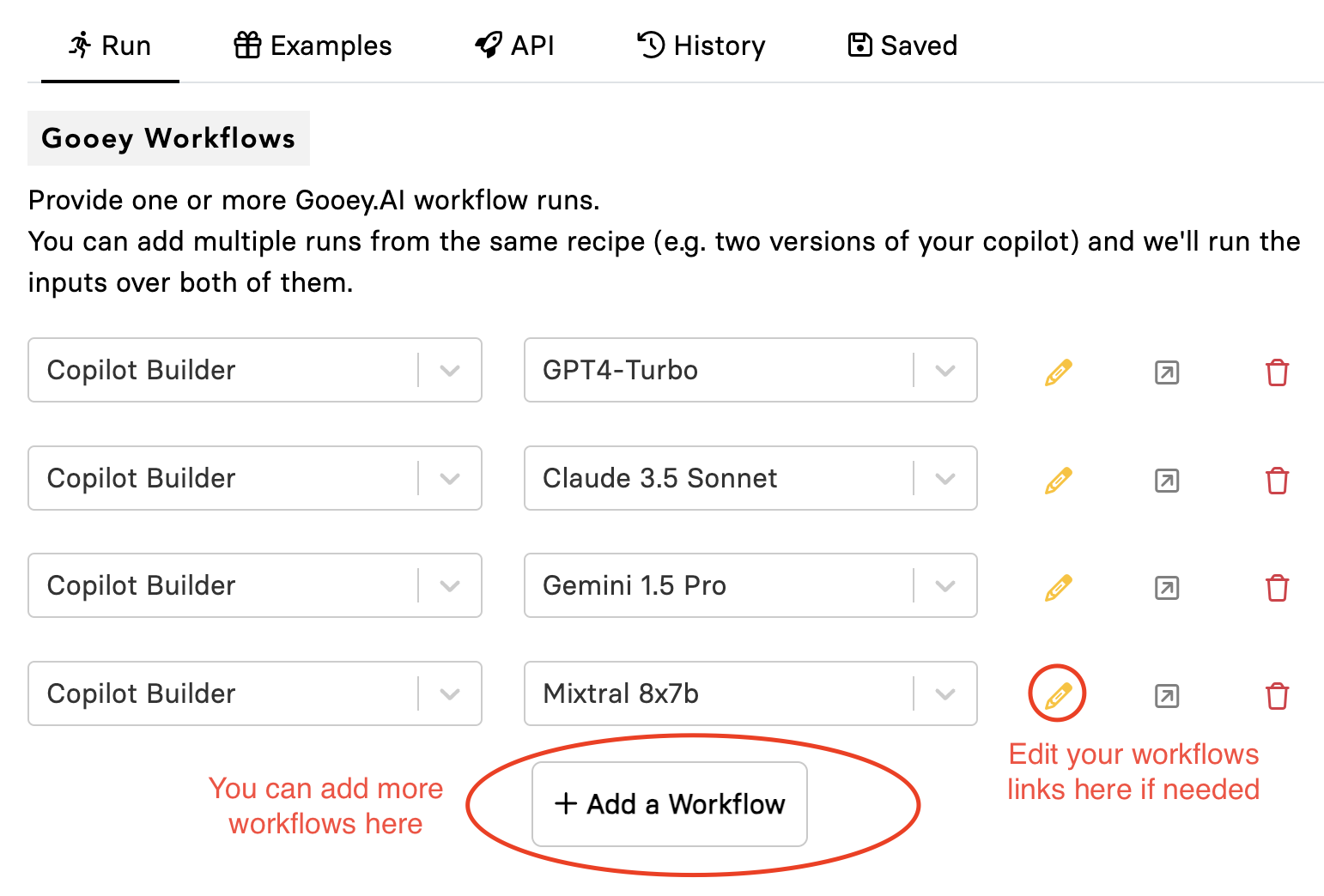
In this example scenario, we are comparing and evaluating the quality of the answers of various AI Agents that have all the same settings and functionalities except for different LLMs.&#x20;

<table data-view="cards"><thead><tr><th></th><th data-hidden data-card-target data-type="content-ref"></th></tr></thead><tbody><tr><td><strong>Check out the example run here: Evaluation only</strong> </td><td><a href="https://gooey.ai/eval/copilot-evaluator-artpuhzwvily/">https://gooey.ai/eval/copilot-evaluator-artpuhzwvily/</a></td></tr></tbody></table>

### Step 1: Select Gooey Workflows to evaluate <a href="#mj1hmvoaayxg" id="mj1hmvoaayxg"></a>

Choose the “SAVED” run from Gooey.AI Workflows that you would like to use.

<img src="/files/50iHeJ4or1vEdJz9z4f7" alt="" width="563">

### Step 2: Input Data Spreadsheet <a href="#id-4y2kttei07z1" id="id-4y2kttei07z1"></a>

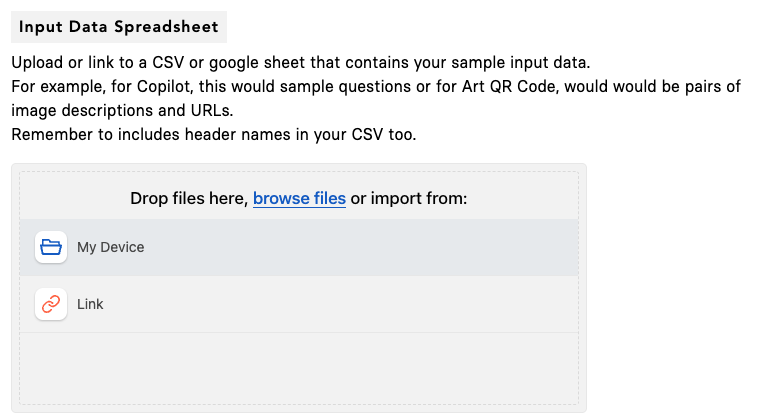
Prepare your golden QnA set:

1. Create a list of the most frequently asked questions for your AI Agent (we recommend between 25 for optimum observability and regression you can do more if you prefer)
2. Make sure the Excel sheet/Google Sheets table has a “header” section
3. Add all your questions and golden answer in the column below it
<figure><img src="/files/YJKfH2xSP07HsmMuwsS5" alt="" width="563"><figcaption></figcaption></figure>

**You must provide the Golden Answers. Golden answers are the most suitable and accurate answers provided by humans with expertise on the subject.**

1. Paste the link of your Google sheet or upload your data&#x20;

<figure><img src="/files/C4yYSuVuEHTk6mtLtd3e" alt="" width="563"><figcaption></figcaption></figure>

### Step 3: Select your input columns <a href="#o6vzivos324o" id="o6vzivos324o"></a>

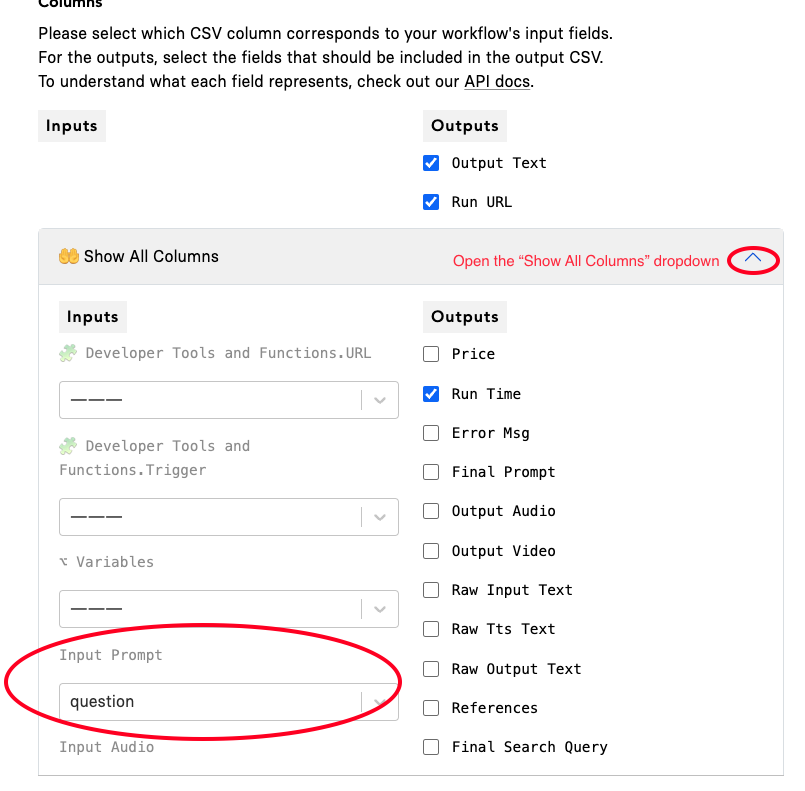
In the current scenario, we want to use the Gooey Agent to answer all the questions in the Google sheet. So essentially they are the “input” for the Bulk Workflow.

Select the “questions” column in the “Input Prompt” section.

<img src="/files/rNG5v7oOl1H3gyhOLxNZ" alt="" width="563">

### Step 4: Hit Submit <a href="#brcrdr2ggss2" id="brcrdr2ggss2"></a>

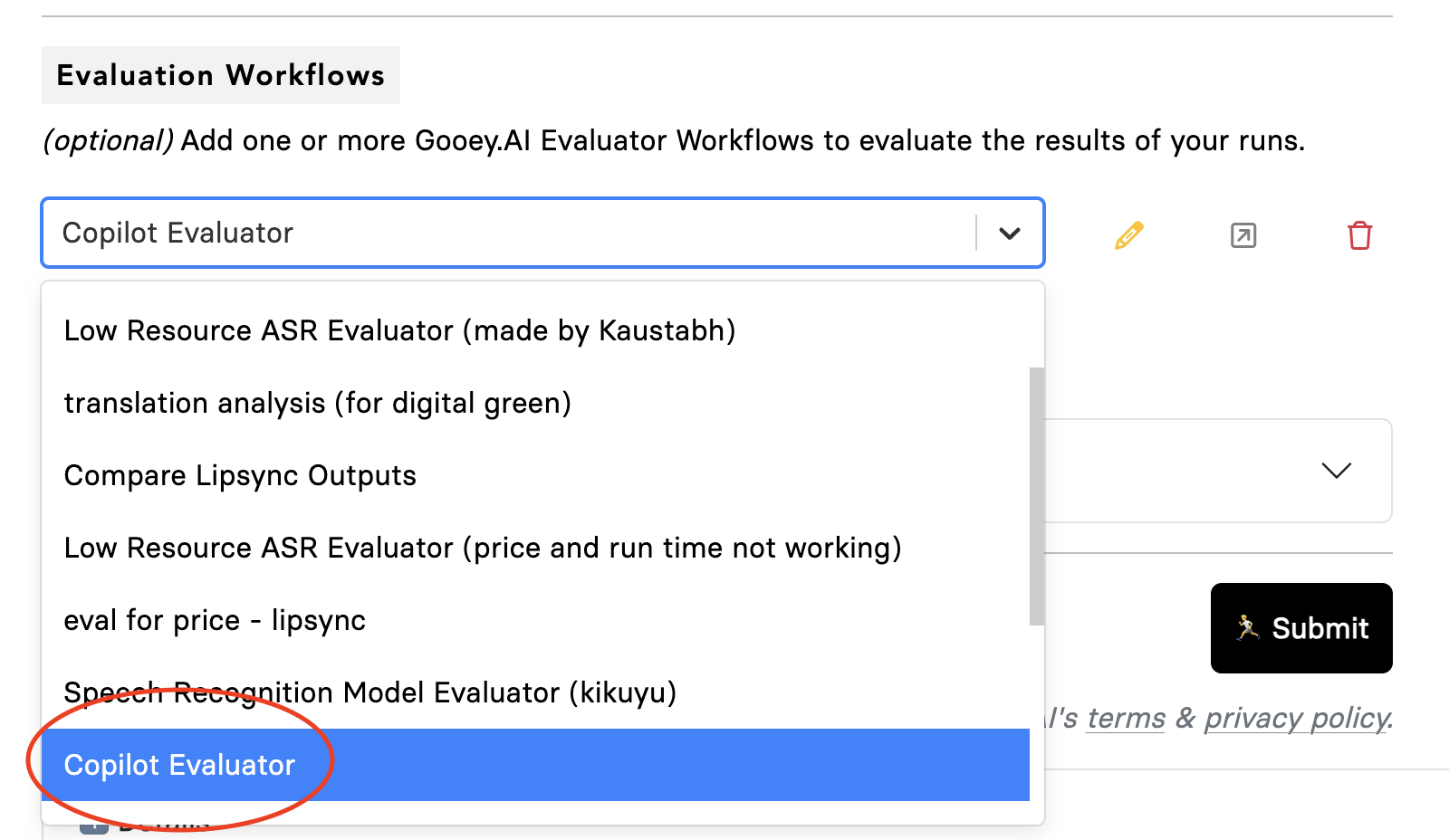
As this is a “Bulk and Eval” scenario, you can “select” the Agent Evaluator option in the section. After that hit the “Submit” button.
<img src="/files/PiZdsgt4L8bIHkG0GcUM" alt="" width="563">

*Note: We recommend using the “Agent Evaluator” if you are evaluating Agent Runs.*

### Output <a href="#id-22et24oucovd" id="id-22et24oucovd"></a>

The workflow will create a new CSV, with an added few columns based on the run, including, “Output Text”, “Run URL”, and “Run Time”.

***With the evaluation option, you will also get output for “Rationale”, “Compare Run Score”, etc. You will also get a Compare Chart which will show the aggregate scores.***

**Your output will be on the right side of the page.**

<figure><img src="/files/u1NyEdBUjFTEZDywcTOS" alt="" width="563"><figcaption></figcaption></figure>

<figure><img src="/files/IwNXXQULe2mtWQj9sTZI" alt="" width="375"><figcaption></figcaption></figure>

### Best Practices <a href="#oucznt5a94xk" id="oucznt5a94xk"></a>

* Keep it simple - try to use an input spreadsheet with limited columns
* Don’t leave any empty data points in the second row - there is a bug and the column does not read
* Make sure to name your “Saved” workflows with relatable titles so that it is easy to set up the run
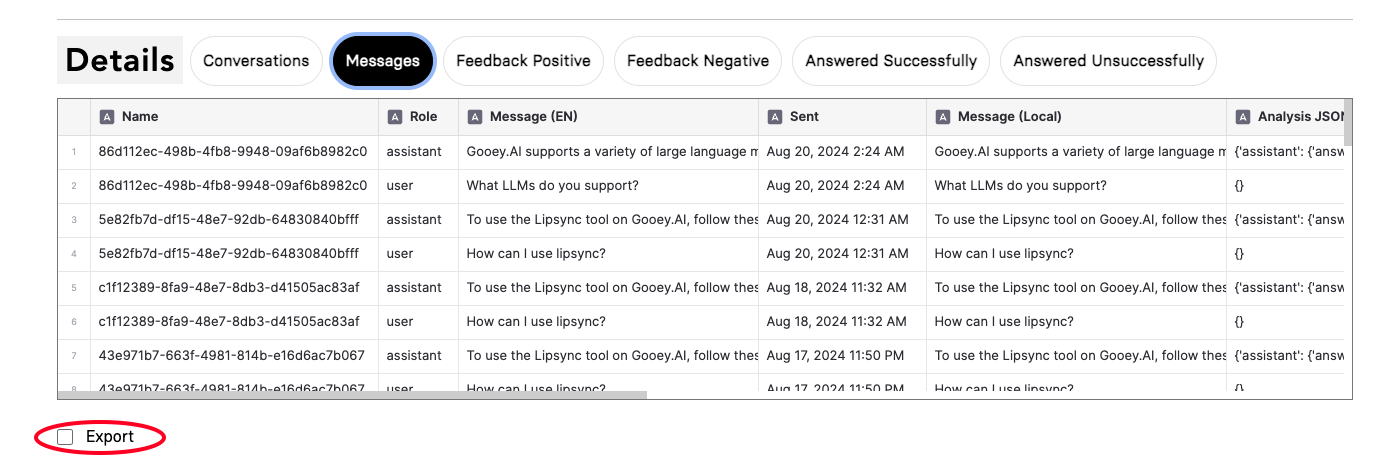
* We recommend collecting user messages from your saved agent's “Analytics” section. Head to Your agent link> Deploy tab > View Analytics, scroll to the bottom, and **export** the “Messages” tab CSV. <br>

  <figure><img src="/files/vQvTjlIwurP1w42oIbdR" alt=""><figcaption></figcaption></figure>

#### Note: <a href="#id-8grsusqblfge" id="id-8grsusqblfge"></a>

* Bulk runner will only read the first sheet of your Excel or Google Sheet
* In the case of Google Sheets, you can shift your relevant sheet to be the first and then re-enter the link in the Input section. IT WILL NOT REFRESH ON ITS OWN.


---

# Agent Instructions: Querying This Documentation

If you need additional information that is not directly available in this page, you can query the documentation dynamically by asking a question.

Perform an HTTP GET request on the current page URL with the `ask` query parameter:

```
GET https://docs.gooey.ai/tools/evaluations/how-to-set-up-evaluations.md?ask=<question>
```

The question should be specific, self-contained, and written in natural language.
The response will contain a direct answer to the question and relevant excerpts and sources from the documentation.

Use this mechanism when the answer is not explicitly present in the current page, you need clarification or additional context, or you want to retrieve related documentation sections.