> For the complete documentation index, see [llms.txt](https://docs.gooey.ai/llms.txt). Markdown versions of documentation pages are available by appending `.md` to page URLs; this page is available as [Markdown](https://docs.gooey.ai/tools/how-to-use-gooey-functions/how-to-connect-firebasedb-to-copilot.md).
# How to connect FirebaseDB to Copilot
In this guide, we will learn how to create a Functions call to push medical records to Firebase Realtime Database via a conversational Copilot meant for Community Health Workers.
#### Scenario
A CHW visits a beneficiary for a monthly checkup, taking notes by hand due to unstable network connectivity that disrupts data entry in the Android app.
#### Proposed Copilot
The CHW sends a voice note via WhatsApp. It transcribes data for approval and updates the medical database hosted on Firebase Realtime Database, avoiding connectivity issues.
You can try the WhatsApp Workflow here:
{% embed url="" %}
You can tweak the Workflow here:
{% embed url="" %}
Nurse Julie Copilot Builder
{% endembed %}
## Create the Firebase Function
### Step 1: Create a Firebase project


### Step 2: Create a Realtime DB in Firebase
Once you have created the RTDB, copy the RTDB URL


### Step 3: Duplicate the Firebase Function
Head to the FirebaseDB example in Gooey.AI (see the link below), duplicate the example by using the “Save as New” button and adding it to your workspace
{% embed url="" %}


### Step 4: Paste the RTDB URL in Gooey.AI Functions
Paste the RTDB URL from Step 2 and replace it in the \`firebaseURL\` as shown below

### Step 5: Create a path in Firebase RTDB
Head back to your Firebase Realtime Database and add a name value to the RTDB, eg `data`

### Step 6: Get Firebase API key


### Step 7: Add the Firebase API key to Gooey Secrets
Go back to Function you have created in Gooey.AI, scroll down to “Secrets” section. Click on the “Add” button

Add the “name” as FIREBASE\_API\_KEY and the API key which you copied from Firebase in the “value” section, and save the key.

Once its saved, select it from the drop down.

[Know more about adding secrets here](/tools/how-to-use-gooey-functions/how-to-use-secrets-in-functions.md)
### Step 8: Test function
#### Step 8.1: You can hit “Run” to test if the function is working.
If the log shows a “successful” message. Your screen should show this message:

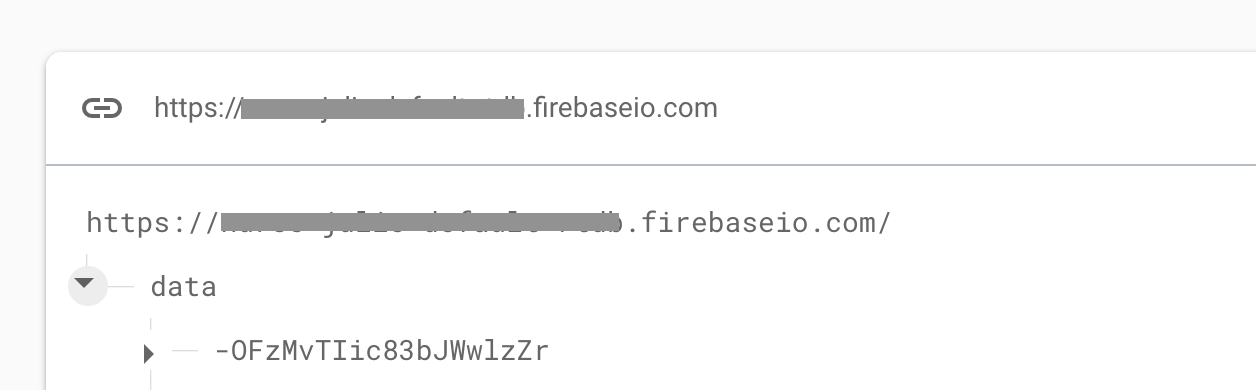
#### Step 8.2: Please check the firebaseRTDB for data updates. Your data should have uploaded.
### Step 9: Save the workflow
Save the changes by clicking “Update”
On saving the function to your workspace, please remember to add a detailed description of what the function does, this will allow the AI Copilot to use the functions in an agentic way

## Add Firebase Function to Copilot
### Step 1: Add function to Copilot
Duplicate the example by using the “Save as New” button and adding it to your workspace
{% embed url="" %}
Scroll down to the “Developer Tools and Functions” section in the Copilot, toggle it on and select the Firebase Function that you saved.

### Step 2: Add prompt instruction
Your prompt needs to be a bit detailed to make sure that the Functions are working properly.\
You need this:
1. To make sure Copilot knows it needs to call a Function at appropriate time,
2. To ensure that LLM translates natural language conversation to JSON data structure as per your requirement
Your prompt could look something like this:
{% code overflow="wrap" %}
```
You are Nurse Jane - an AI bot to assist community health care workers upload medical records after their family visits to find basic demographics and history.
These are the steps you need to follow:
1. Introduce yourself with this script as a guideline:
"Hello I'm Nurse Julie - your family health care provider, I can provide guidance on creating a health record and integrating care recommendations"
2. Ask for the user to provide, if they miss any data point, please ask them to share that. Don't create any records until all the data is captured:
Community health worker's name (required)
Date of case note (required)
Patient's name (required)
Date of Birth (required)
Phone Number (required)
Family members (required)
Address (required)
Date of visit/session (required)
Purpose of visit/session (required)
Observations (required)
Topics discussed (required)
3. Don't create any records until all the data is captured. Then ask if they'd like to create medical record based on this information. Create the record as the following JSON and POST to firebase DB. Please don't run the function until user gives you approval.
{
data: {
mobile: string,
patient_name: string,
address: string,
dateOfBirth: string,
family_member: string,
pid: number,
health_workers_name: string,
case_date: date,
visit_date: date,
visit_purpose: string,
observations: string,
topics_discussed: string
}
}
4. If you are asked to retrieve the information of a patient ask for the phone number and use the firebase RTDB Get function to retrieve it
Guidelines:
- Avoid answering questions that don't pertain to health matters
- Respond without emojis, bulleted lists or special symbols (e.g. “*”)
- Respond in the same language as the user. e.g. if they ask a question in Hindi, reply in Hindi.
- Use simple, direct language.
```
{% endcode %}
#### What is the prompt doing?
* In point 2 of the prompt, we have shared all the information the Copilot must collect to create a record.
* In point 3, we provide a FIXED json format for the LLM to output. This ensures that the data pushed to the FirebaseDB is always in the same format, which is important for retrieval
* In point 4, we instruct the Copilot to utilize Functions when the user requests to retrieve or push information.
### Step 3: Test copilot
In the chatbox of the Copilot Builder, you can run a test to check whether the Copilot is working.
{% embed url="" %}
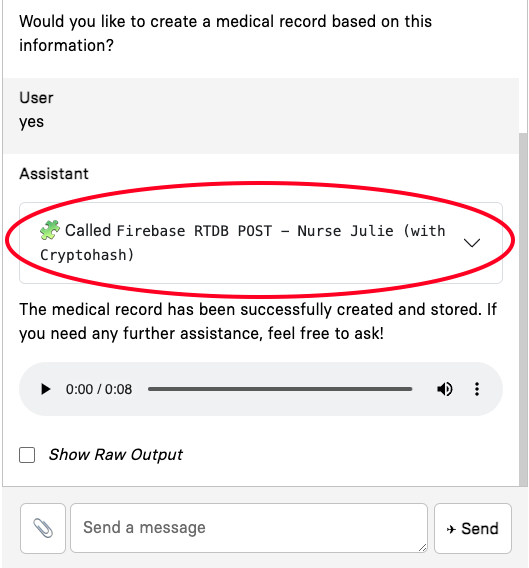
If the Function is run, you can see the widget with all the details.
You can also confirm if the data has been created and stored by logging into the Firebase RTDB like [Step 8 from above](#step-8-test-function).
### Step 4: Save the workflow
Save the changes by clicking “Update”.
%20(3).jpg?alt=media&token=7c92f5e0-59af-4003-b5c2-a00793940fb5)